How IndeXplorer works
IndeXplorer is a file manager for Android phones and tablets by Sonicon Software. It shows two panes on wide screens and tabs on phones, queues work in a task center with pause and undo, finds large and duplicate files, backs up and installs apps, opens archives like folders, reaches SMB, SFTP, FTP and WebDAV servers, and shares folders over Wi-Fi.
1. Access: All files access or picked folders
IndeXplorer asks for Android's All files access on first launch, because a file manager has to reach every folder on shared storage and the SD card. With it, the app can browse, copy, trash and index everything Android allows. Without it, Continue with limited access lets you browse only the folders you pick.
Android keeps other apps' private folders (Android/data and Android/obb) hidden, even with All files access. On older Android versions the app asks for the storage permission instead.
2. Two panes and tabs
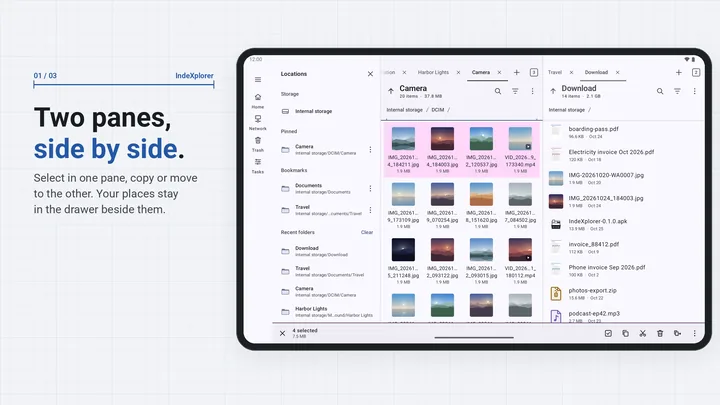
On tablets, foldables and phones in landscape, two panes sit side by side, each with its own tabs; copy or move to the other pane in one step, or drag and drop. On a phone, swipe between tabs or see them all in one list, and copy or move to another tab. The clipboard survives closing the app.
A drawer lists your storage, pinned folders, bookmarks, recent folders, saved servers, Trash and Wi-Fi share. On a phone it opens from the menu button at the start of the tab strip; on a tablet it stands beside the panes. Pin or bookmark any folder, even inside an archive or on a server. Swipe past the last tab, or double-tap empty space in the tab strip, for a new tab.
3. The task center
Copies, moves, deletes, extractions, compression, batch renames, checksums, duplicate scans and APK backups run as tasks in a queue. They keep running when you leave the app, with Pause and Cancel in the notification, and a paused task resumes later. When a name already exists you choose Replace, Skip, Keep both or Merge folders, once or for every clash.
Each file is written under a temporary name and renamed when it is complete, so a cut-off copy leaves no half-written file under the real name. A dropped server connection pauses the task, and Resume carries on from where it stopped.
4. Trash and undo
On local storage the app can write to, a delete moves the file into a hidden trash folder at the root of that storage, kept 30 days by default. The snackbar offers Undo for a delete, move, rename or batch rename. Where there is no trash, the app asks first and the delete is permanent.
You can keep trashed files for 7, 30 or 90 days. The trash lives on your storage, not inside the app, so uninstalling IndeXplorer leaves it there. Empty it first if you are removing the app.
5. Archives as folders
Archives open like folders: browse inside, open a file, or extract only what you pick. IndeXplorer reads zip, 7z, RAR, tar and other formats, asks for the password of a protected zip or 7z, and creates zip, 7z, tar, tar.gz and tar.xz. Inside a non-split zip on your device you can add, delete and rename files.
Password-protected zip and 7z open. Encrypted RAR is not supported. Zip can get an AES-256 password and split volumes; 7z can be split. An entry whose path would land outside the destination folder is refused.
6. Network storage
Add a server once with its address, user and password or SFTP key, then browse it like a local folder: copy to and from it, open files, or edit a text file and save it back. IndeXplorer speaks SMB 2 and 3, SFTP, FTP, FTPS and WebDAV over HTTP or HTTPS, and downloads a URL with resume.
SFTP host keys are remembered, and a changed key is blocked until you trust it. A self-signed FTPS or WebDAVS certificate can be trusted for that one connection. Plain FTP, WebDAV over HTTP and http:// downloads are unencrypted, like any client that uses them.
Saved passwords and private keys are encrypted with a key held in the Android Keystore and kept out of Android backups and device transfer. You can choose Ask every time instead, so nothing is saved.
7. Search
IndeXplorer keeps an on-device index of file names across your storage and searches it as you type. Filter by type, size, date and hidden files, in all storage, one volume or one folder, then use Show in folder to jump to the file. Servers and archives are searched live from the folder you are in.
9. Storage analyzer
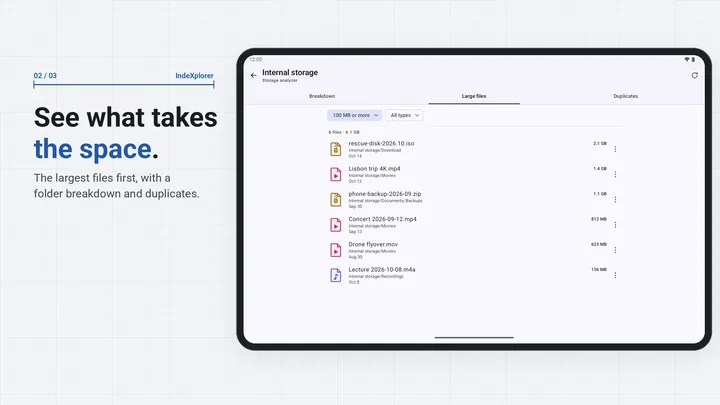
Open Storage analyzer from Home, the drawer or a local folder's menu. Breakdown lists the folders inside by size, with a share bar and item count; tap a folder to drill in. Large files lists files of 100 MB or more, largest first, filtered by type. Sizes come from the search index and are measured live where it hasn't reached.
Set the minimum anywhere from 10 MB to 1 GB; the list shows the largest 500. Before a file goes to the trash, the app checks it again and skips one that is gone or has changed. The analyzer works on your phone and SD card, not inside archives or on servers.
10. Duplicate files
Find duplicates runs as a task you can pause. It groups files of the same size, compares a SHA-256 hash of each file's first and last 64 KiB, then hashes whole files that still match. Groups are listed by the space they would free. Choose Keep newest or Keep oldest, and the other copies go to the trash with Undo.
Files under 1 MB are skipped by default (choose 100 KB to 100 MB), as are empty files, the trash and Android/data and Android/obb. Move to trash stays off while any group would lose every copy, and a file that changed since the scan is kept. Hashes are remembered by size and date, so a second scan reads only files that changed.
11. App manager and APK backup
App manager, in the drawer, lists installed apps with their version, APK size and install and update dates: user apps by default, or system apps or all. Search and sort the list. For each app you can Back up, Share APKs, open App info, or Uninstall through Android's own dialog, which is not offered for system apps.
Back up saves an app installed as one APK as an .apk file, and an app installed in parts as one .apks file, in Download/APKs or a folder you choose. Select several apps for one backup task. App data is not included, so a reinstalled backup starts fresh.
12. Installing package files
Open a .apk, .apks, .xapk or .apkm file and IndeXplorer shows the app's name, package and version, and whether it is a new install, an update or a downgrade. Install writes every part into one Android install session, and Android asks you to confirm. If installs from IndeXplorer are turned off, the app explains and opens that setting first.
Packages that mix apps or versions, hold splits without a base, or are encrypted .apkm files are refused with the reason. An .xapk's OBB files go to Android/obb when Android lets the app write there. Once Android takes over, the task shows Waiting for Android until it reports the result.
13. Batch rename
Batch rename shows every new name in a live preview and blocks clashes before anything changes. Use find and replace with text or regex, numbering in the order you choose, case changes and date tokens; your last 10 patterns are kept. The rename runs as a task in one folder, and Undo puts the old names back.
If the rename is interrupted, it finishes or rolls back when resumed, and it skips any item that changed in the meantime instead of renaming it.
14. Checksums
IndeXplorer computes MD5, SHA-1, SHA-256 and SHA-512 for one file or many. Paste a published hash to check a download, compare two files, or save a checksum file. Opening a .md5, .sha1, .sha256 or .sha512 file offers Verify, which reports each listed file as OK, mismatched or missing. Checksum files use the same format as sha256sum.
Two files of different sizes are reported as different without being read. Verify lists any line of a checksum file it can't read.
Inputs and limits
Access
- Whole storage needs All files access. With limited access you can only browse folders you pick, and there is no trash and no search index.
- Since Android 11, apps cannot see other apps' files in Android/data and Android/obb, even with All files access. Only the folders Android allows are shown.
Deleting and undo
- Folders you picked, archives and servers have no trash, so deleted items there are gone for good. The app asks before it deletes.
- The trash is a hidden
.FileExplorerTrashfolder at the root of each storage. Items are removed after 30 days by default (7, 30 or 90). Uninstalling the app leaves the folder and its files; empty the trash first. - A paused task leaves a hidden part file (
.name.fe-part) until you resume or delete the task. - Undo is not offered when the files have changed since, and a move into a zip has no Undo.
Servers
- SMB: the app can't list shares; type the share in Share and folder (for example
/share/media). - FTPS servers that require TLS session reuse on the data connection (vsftpd
require_ssl_reuse=YES) refuse transfers. - WebDAV has no append, so an interrupted upload restarts from the beginning.
- Plain FTP, WebDAV over HTTP (
dav://) andhttp://downloads are allowed and not encrypted; passwords on them travel unencrypted too. - Thumbnails of server files are off by default; turn them on in Settings.
Archives
- Encrypted RAR archives (RAR4 and RAR5) aren't supported.
- 7z archives are created without a password; only zip gets one (AES-256).
- Split zips are created but can't be browsed; raw
.001splits open. Adding, deleting and renaming inside an archive works only in a non-split zip on your device. - Archive tasks restart from the beginning when resumed. An encrypted compress fails if Android stops the app mid-task, because the password is kept only in memory.
Wi-Fi share
- Same Wi-Fi or hotspot only, never mobile data, and one share at a time.
- The browser warns about the phone's self-signed certificate.
- Uploads from the browser need a single shared folder.
- In HTTP mode, as the app warns: "Traffic is not encrypted. Anyone on this network can see the files you download and the access code. Use HTTP only on a network you trust."
Storage analyzer and duplicates
- Local storage only: folders on your phone and SD card, never inside archives or on servers.
- Breakdown and Large files read the search index, so they are as fresh as its last scan; the line under the total says when (Index updated, or Measured just now). Folders the index never reached are measured live, and Refresh rescans the folder.
- Large files starts at 100 MB by default (10 MB to 1 GB), shows the largest 500 and never lists the trash.
- Duplicates are files with the same size and the same SHA-256 hash of their whole content; there is no byte-by-byte comparison.
- The duplicate finder skips files under the minimum size (1 MB by default, 100 KB to 100 MB), empty files, the trash folder, Android/data and Android/obb. Hidden files are included.
- Move to trash stays off while any group would lose every copy (“Every copy is selected. Keep at least one.”). Each file is checked again before it is deleted, and a file that changed since the scan is kept.
- A scan paused mid-file continues from that point only while the app is still running; after a restart it repeats the group it was on, reading cached hashes for files it already read.
- Old results can expire; the app then asks you to scan again.
App manager and installs
- Backups hold APK files only: “App data is not included.” Installing a backup brings back the app, not its data, logins or settings.
- Uninstall is never offered for system apps. Every install and uninstall is confirmed in Android's own dialog.
- Refused with the reason: encrypted .apkm files, packages that mix apps or versions, splits without a base, two bases, the same split twice, and files that are not a package.
- A package older than the installed app is marked as a downgrade, and Android usually refuses it.
- An .xapk's OBB files go to Android/obb only when that folder can be written; otherwise the result says they were not copied and where they are in the package. On Android 16 that works only after the app restarts following the install-permission grant.
- Once Android takes over an install, the task shows Waiting for Android and can't be paused or cancelled.
Rename and checksums
- Batch rename works on items in one folder. On resume or retry, items changed or restored since the plan was made are skipped, never renamed.
- Compare reports files of different sizes as different without reading them.
- Verify reports every line of a checksum file it can't read instead of skipping it.
Devices
- Android phones and tablets. The app is in English only.