
Peel: a calm home screen with a sticker for every day you show up
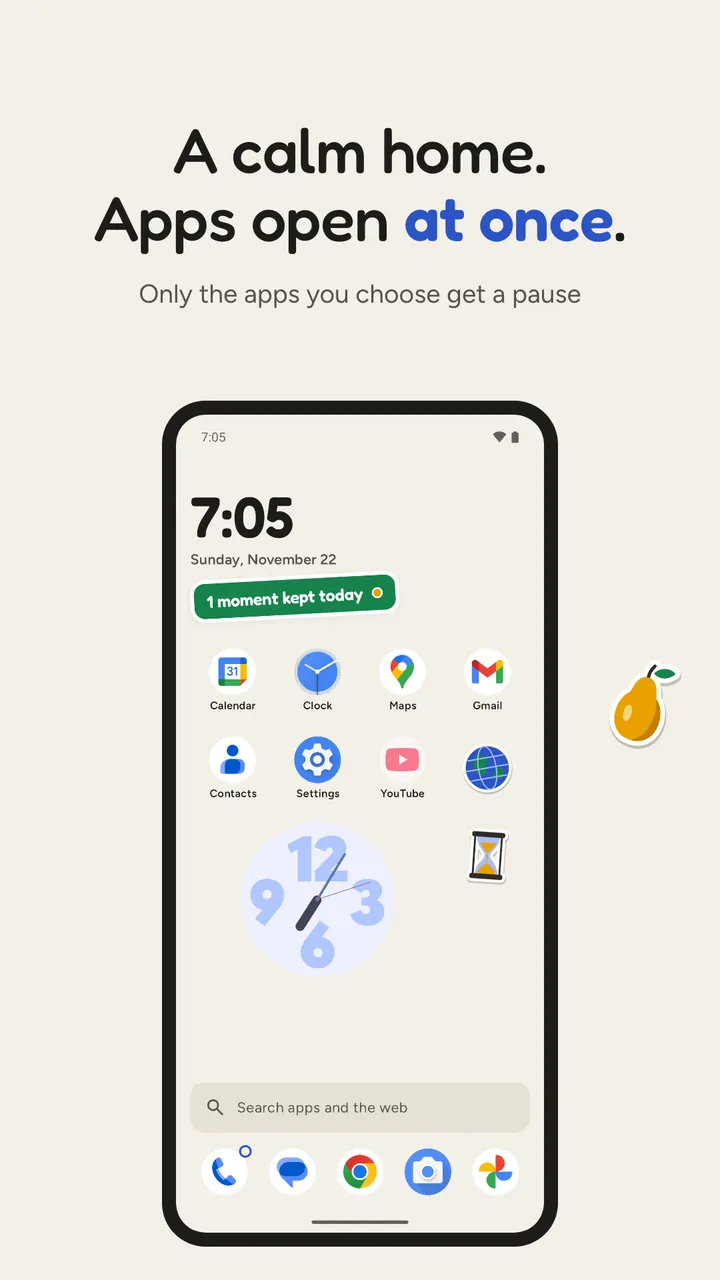
Peel is an Android home screen on album-page paper. Apps you haven't marked open straight away, with no pause. For the few you choose, Peel asks for one slow breath first, with "Not now" as the main button. Every day you open Peel earns a die-cut sticker for your album.
No account, no ads and no internet access. Peel has no internet permission, so it can't send anything over the network itself.

For Android phones running Android 10 or later.
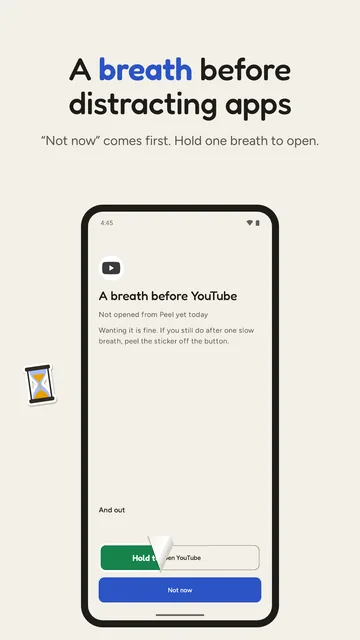
A breath before distracting apps
Mark an app as distracting, and Peel shows a short pause before it opens. "Not now" comes first. If you still want the app, press and hold the sticker on Open: it peels off over one slow breath, about 3 seconds. Let go early and the breath starts again, with no penalty and no countdown.
The pause covers apps you open from Peel: home, the dock, the drawer, search and folders. Apps opened from a notification or another app open as usual. With TalkBack, an "Open after one breath" action takes the place of the hold. More in How the pause works.
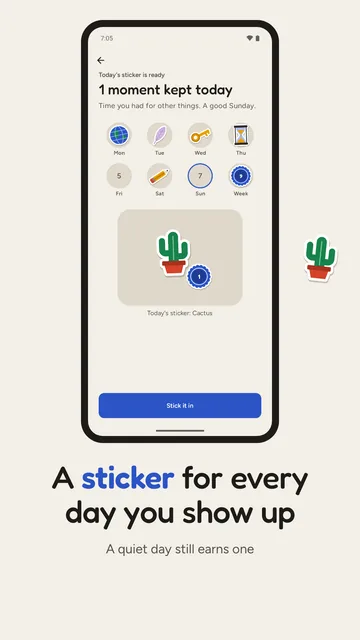
A sticker for every day you show up
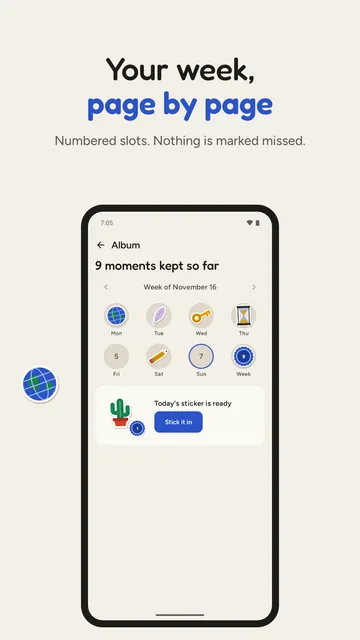
Each "Not now" is a kept moment. From 6 pm, today's sticker is ready to stick into your album, and you can open it any time. A day with kept moments earns a "kept" sticker, and a quiet day still earns a "showed up" sticker. Each week has its own page of numbered slots.
Nothing is marked as missed. With usage access on, Peel estimates the minutes each Not now kept and shows them as "about"; without it, Peel counts moments and everything else works the same. The rule is in Moments and minutes kept.
Stickers on your home
Put any sticker you've earned on your home screen. Long-press it to move it, turn it or remove it. Stickers are the only decoration Peel adds: the rest of the home screen stays plain, with your apps, widgets, folders and dock.
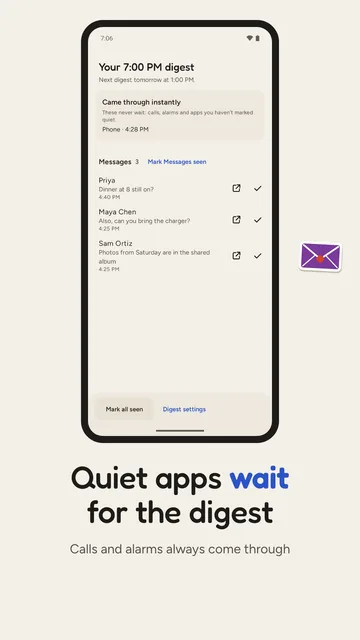
Quiet apps wait for the digest
Mark apps as quiet, and their notifications leave the shade and wait in a digest that arrives at the times you choose, one to four times a day. Notifications an app marks as a call or an alarm, and ongoing ones such as music or navigation, still come through straight away.
The digest and notification dots are both off until you turn them on. Don't mark an app as quiet if you need its messages at once. Timing and limits are in How the digest works.
The launcher basics
Under the stickers, Peel is an ordinary Android launcher. It has an A to Z drawer, folders, a dock, pages, real widgets, gestures and one search for apps, shortcuts and settings. Work profile apps get their own tab. Your layout can be locked, and backed up to a file you keep.
- An A to Z app drawer where you can rename or hide any app.
- Work profile apps in their own tab, with pause and resume.
- Private space on Android 15 and later, when Peel is your home screen.
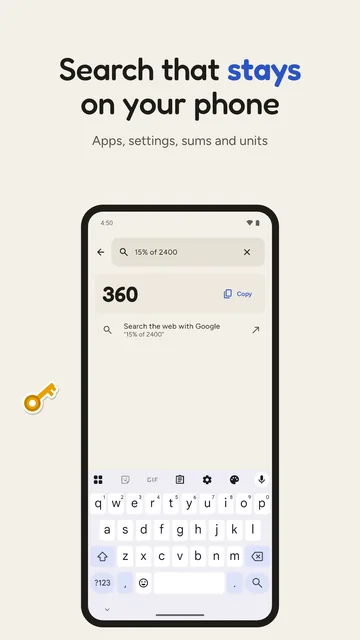
- One search for apps, app shortcuts and settings, with a calculator and unit conversions.
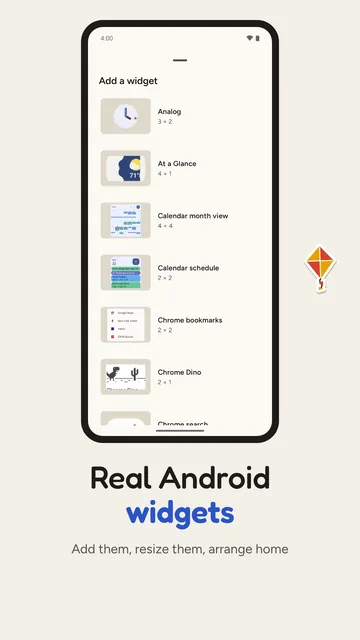
- Real Android widgets you can add and resize.
- Folders, a dock, pages and a choice of 4 to 6 grid columns.
- Gestures on home (swipe up, swipe down, double-tap, pinch), each set to the action or app you choose.
- A layout lock, and backup to a file you keep, with restore from it.
Three sticker sheets, light and dark
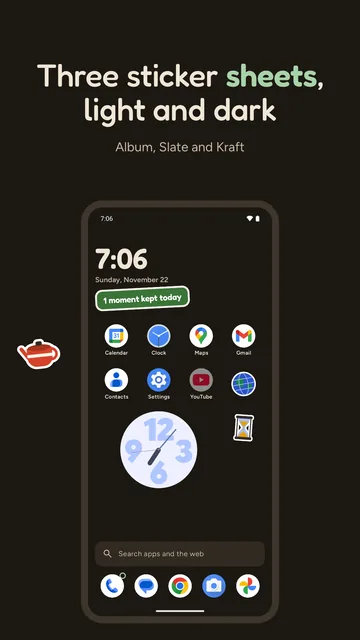
Pick a sticker sheet: Album, Slate or Kraft, each with a light and a dark version. Switching keeps your apps, widgets and stickers where they are. You can also turn on themed icons, hide app names, or show your wallpaper instead of paper.
- AlbumWarm paper, cobalt ink.
- SlateBlue-grey paper, petrol teal.
- KraftBrown paper, forest green and brick.
Your phone, your data
Peel has no internet permission, no ads, no analytics and no account. Notification access and usage access are optional, and Peel explains what it reads before Android asks. What it reads stays on your phone, and notifications are never put in a backup file you save.
Android cloud backup is off; on some phones running Android 12 or later, setting up a new phone directly from the old one may still copy Peel's data. Held notifications stay in Peel's storage until a later digest replaces them: clearing one only dims it, and turning off the digest or notification access doesn't delete them. Clearing Peel's storage in Android settings, or uninstalling, does. Read Peel's privacy policy. These web pages use cookieless PostHog analytics; see Website analytics.
Take one breath before the next scroll